
(Plesk per Windows) Accesso ai database con ODBC
Se la tua applicazione deve accedere ai database esterni tramite ODBC, puoi creare la connessione ODBC necessaria in Plesk. Dopo aver creato la connessione ODBC, puoi personalizzare l’applicazione per usare tale connessione ODBC per accedere all’informazione nel database.
Tieni presente che il database non deve necessariamente essere esterno, ODBC può essere usato per accedere anche ai database locali.
ODBC data sources can be managed at two levels:
Server level — data sources available to all domains on the server. Managed in Tools & Settings > ODBC Data Sources.
Domain level — data sources available to a specific domain only. Managed in Websites & Domains > ODBC Data Sources.
Plesk supports both 32-bit and 64-bit data sources. When creating a data source, you can select the platform (32-bit or 64-bit) based on your application’s requirements. The default is 64-bit.
Nota
If you are upgrading from an earlier version of Plesk, the plesk bin dsn CLI command now defaults to managing 64-bit data sources. If you need to manage 32-bit data sources via CLI, use the -bit 32 option explicitly.
ODBC Drivers
Plesk for Windows includes built-in support for the following 64-bit ODBC drivers:
SQL Server
ODBC Driver 17 for SQL Server
MySQL ODBC 9.7
To use additional ODBC drivers, install them manually on the server. After installation, go to Tools & Settings > Server Components and click Refresh so that Plesk recognizes the newly installed drivers.
Managing Server-Level ODBC Data Sources
Server-level ODBC data sources are available to all domains on the server.
To create a new server-level ODBC data source:
Go to Tools & Settings and click ODBC Data Sources.
Fai clic su Aggiungi DSN ODBC.
Specificate il nome di connessione ODBC e la descrizione nei campi corrispondenti.
In the Platform field, select 32-bit or 64-bit depending on your application’s requirements.
Selezionare il driver richiesto nel campo Driver.
Fare clic su Crea DSN ODBC.
Choose the appropriate options on the driver configuration screen. Typically, you have to specify the database path, user credentials, and other connection options depending on the selected driver.
Click Test connection to check whether the connection will function properly with the provided settings.
-
Click Save to complete the creation.

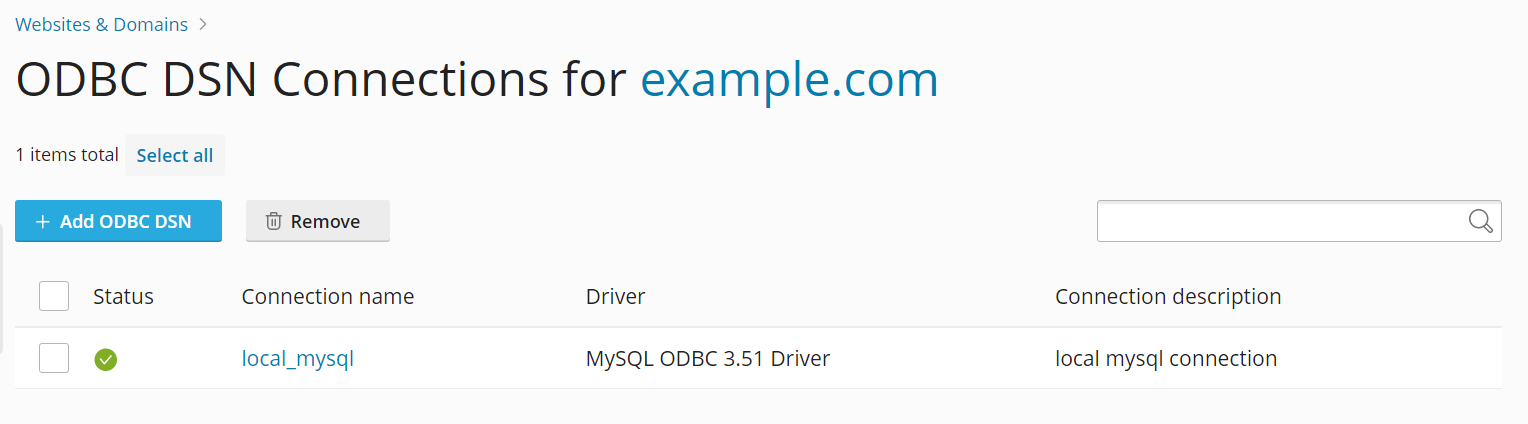
To change the settings of an existing server-level ODBC data source:
Go to Tools & Settings and click ODBC Data Sources.
Cliccare sul nome di connessione richiesta nell’elenco.
Modificare le impostazioni a seconda delle necessità.
Click Test connection to check whether the connection will function properly with the new settings.
Click Save to save changes.
To remove a server-level ODBC data source:
Go to Tools & Settings and click ODBC Data Sources.
Seleziona la casella di controllo vicino alla connessione che desideri rimuovere.
Fare clic su Rimuovi, quindi scegliere Sì, rimuovi.
Managing Domain-Level ODBC Data Sources
Domain-level ODBC data sources are available only to a specific domain.
To create a new domain-level ODBC data source:
Vai su Siti web e domini e fai clic su Origine dati ODBC.
Fai clic su Aggiungi DSN ODBC.
Specificate il nome di connessione ODBC e la descrizione nei campi corrispondenti.
In the Platform field, select 32-bit or 64-bit depending on your application’s requirements.
Selezionare il driver richiesto nel campo Driver.
Fare clic su Crea DSN ODBC.
Choose the appropriate options on the driver configuration screen. Typically, you have to specify the database path, user credentials, and other connection options depending on the selected driver.
Click Test connection to check whether the connection will function properly with the provided settings.
Click Save to complete the creation.
To change settings of an existing domain-level ODBC data source:
Vai su Siti web e domini e fai clic su Origine dati ODBC.
Cliccare sul nome di connessione richiesta nell’elenco.
Modificare le impostazioni a seconda delle necessità.
Click Test connection to check whether the connection will function properly with the new settings.
Click Save to save changes.
To remove a domain-level ODBC data source:
Vai su Siti web e domini e fai clic su Origine dati ODBC.
Seleziona la casella di controllo vicino alla connessione che desideri rimuovere.
Fare clic su Rimuovi, quindi scegliere Sì, rimuovi.