
Mozilla Thunderbird からのアクセス
概要
Mozilla Thunderbird に Plesk メールアカウントを追加する方法
The instructions provided in this section were verified against Mozilla Thunderbird 142.0. They might not work with earlier or later versions of Mozilla Thunderbird.
Mozilla Thunderbird をセットアップするには:
Mozilla Thunderbird を開きます。
From Account Settings click New Account > Mail account....
-
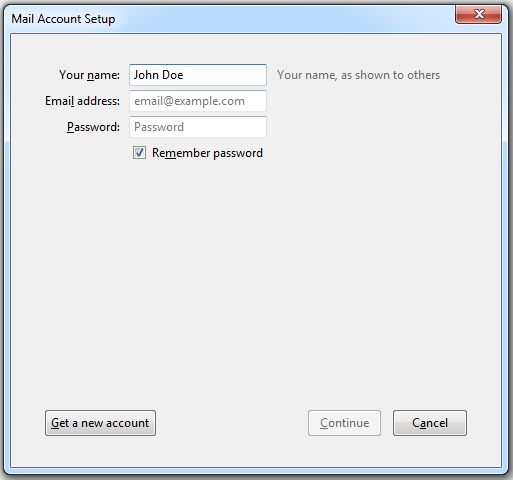
以下を指定します。
名前(送信するすべてのメッセージに表示されます)
-
電子メール アドレス

[続ける]をクリックします。
-
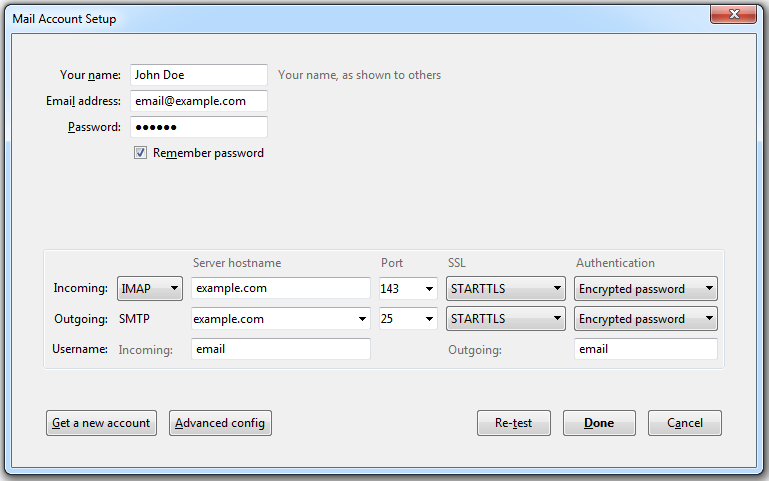
If Thunderbird fails to find the settings automatically, click Manual config and specify the following for both incoming server settings and outgoing server settings:
Protocol. If you want to keep copies of messages on the server, select the IMAP option. If you do not want to keep any messages on the server, select the POP3 option. Selecting IMAP will also allow you to train the SpamAssassin spam filter on email messages you receive, provided SpamAssassin is enabled on the server.
-
Depending on your environment, specify your manual configuration settings.
Specify your password.
[完了]をクリックします。
Manual configuration settings
メールアカウントを手動でセットアップする場合、接続セキュリティと認証方法の設定を以下のように組み合わせて使用してください。これらの設定でうまくいかない場合、ホスティング事業者に正しい組み合わせを問い合わせてください。
Linux、SMTP、IMAP、POP3 の場合:
SSL/TLS: STARTTLS
認証方式: 暗号化されたパスワード認証
Windows(IMAP)の場合:
SSL/TLS: なし
認証方式: 暗号化されたパスワード認証
Windows、SMTP、POP3 の場合:
SSL/TLS: なし
認証方式: 通常のパスワード
アカウントを手動で構成する場合に指定できるその他のパラメータ:
POP3 ポート:110
IMAP ポート:143
SMTP ポート:25
ユーザ名: メールアドレス全体を指定します(例: johndoe@example.com)
受信用メールサーバ(POP3/IMAP):ウェブサイトのインターネットアドレスを指定します(例: example.com)
送信サーバアドレス: ウェブサイトのインターネットアドレスを指定します(例: example.com)