
(Plesk for Windows) Accessing Databases with ODBC
If your application needs to access external databases through ODBC, you can create the necessary ODBC connection in Plesk. After you have created the ODBC connection, you can customize the application to use that ODBC connection to access information in the database.
Note that the database does not necessarily need to be external; ODBC can be used to access local databases as well.
ODBC data sources can be managed at two levels:
Server level — data sources available to all domains on the server. Managed in Tools & Settings > ODBC Data Sources.
Domain level — data sources available to a specific domain only. Managed in Websites & Domains > ODBC Data Sources.
Plesk supports both 32-bit and 64-bit data sources. When creating a data source, you can select the platform (32-bit or 64-bit) based on your application’s requirements. The default is 64-bit.
Note
If you are upgrading from an earlier version of Plesk, the plesk bin dsn CLI command now defaults to managing 64-bit data sources. If you need to manage 32-bit data sources via CLI, use the -bit 32 option explicitly.
ODBC Drivers
Plesk for Windows includes built-in support for the following 64-bit ODBC drivers:
SQL Server
ODBC Driver 17 for SQL Server
MySQL ODBC 9.7
To use additional ODBC drivers, install them manually on the server. After installation, go to Tools & Settings > Server Components and click Refresh so that Plesk recognizes the newly installed drivers.
Managing Server-Level ODBC Data Sources
Server-level ODBC data sources are available to all domains on the server.
To create a new server-level ODBC data source:
Go to Tools & Settings and click ODBC Data Sources.
Click Add ODBC DSN.
Specify the ODBC connection name and description in the corresponding fields.
In the Platform field, select 32-bit or 64-bit depending on your application’s requirements.
Select the required driver in the Driver field.
Click Create ODBC DSN.
Choose the appropriate options on the driver configuration screen. Typically, you have to specify the database path, user credentials, and other connection options depending on the selected driver.
Click Test connection to check whether the connection will function properly with the provided settings.
-
Click Save to complete the creation.

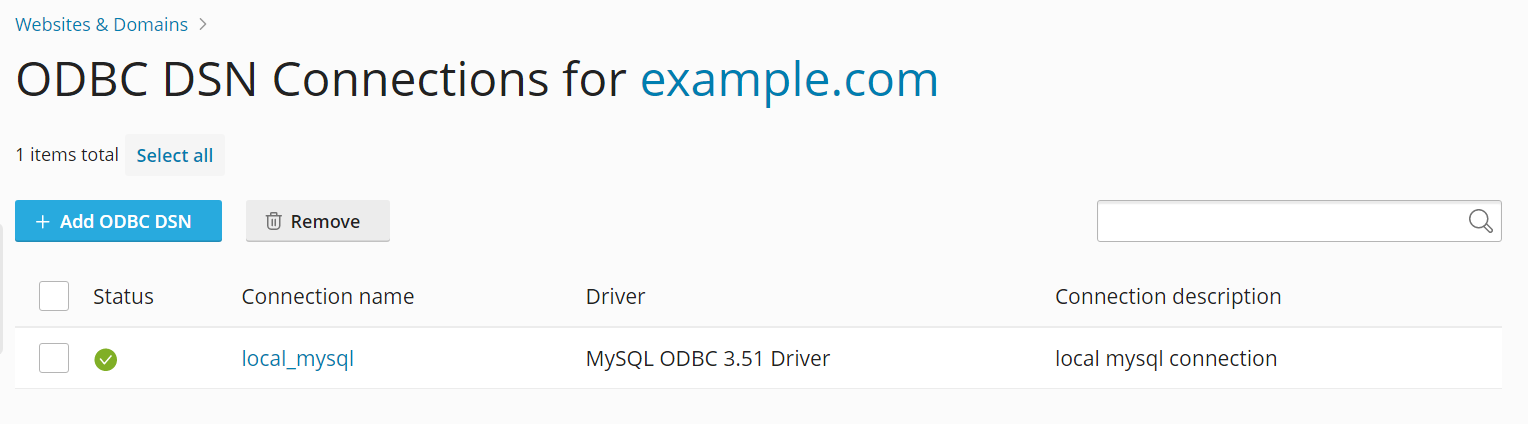
To change the settings of an existing server-level ODBC data source:
Go to Tools & Settings and click ODBC Data Sources.
Click the required connection name in the list.
Change the settings as needed.
Click Test connection to check whether the connection will function properly with the new settings.
Click Save to save changes.
To remove a server-level ODBC data source:
Go to Tools & Settings and click ODBC Data Sources.
Select the checkbox next to the connection you want to remove.
Click Remove, and then click Yes, remove.
Managing Domain-Level ODBC Data Sources
Domain-level ODBC data sources are available only to a specific domain.
To create a new domain-level ODBC data source:
Go to Websites & Domains and click ODBC Data Sources.
Click Add ODBC DSN.
Specify the ODBC connection name and description in the corresponding fields.
In the Platform field, select 32-bit or 64-bit depending on your application’s requirements.
Select the required driver in the Driver field.
Click Create ODBC DSN.
Choose the appropriate options on the driver configuration screen. Typically, you have to specify the database path, user credentials, and other connection options depending on the selected driver.
Click Test connection to check whether the connection will function properly with the provided settings.
Click Save to complete the creation.
To change settings of an existing domain-level ODBC data source:
Go to Websites & Domains and click ODBC Data Sources.
Click the required connection name in the list.
Change the settings as needed.
Click Test connection to check whether the connection will function properly with the new settings.
Click Save to save changes.
To remove a domain-level ODBC data source:
Go to Websites & Domains and click ODBC Data Sources.
Select the checkbox next to the connection you want to remove.
Click Remove, and then click Yes, remove.