
(Plesk para Windows) Acceso a bases de datos con ODBC
Si su aplicación necesita acceder a bases de datos externas mediante ODBC, puede crear la conexión ODBC necesaria en Plesk. Una vez creada la conexión, puede personalizar la aplicación para utilizar esta conexión ODBC para acceder a la información presente en la base de datos.
Tenga en cuenta que la base de datos no necesariamente debe ser externa, ya que ODBC puede utilizarse para acceder a bases de datos locales.
ODBC data sources can be managed at two levels:
Server level — data sources available to all domains on the server. Managed in Tools & Settings > ODBC Data Sources.
Domain level — data sources available to a specific domain only. Managed in Websites & Domains > ODBC Data Sources.
Plesk supports both 32-bit and 64-bit data sources. When creating a data source, you can select the platform (32-bit or 64-bit) based on your application’s requirements. The default is 64-bit.
Nota
If you are upgrading from an earlier version of Plesk, the plesk bin dsn CLI command now defaults to managing 64-bit data sources. If you need to manage 32-bit data sources via CLI, use the -bit 32 option explicitly.
ODBC Drivers
Plesk for Windows includes built-in support for the following 64-bit ODBC drivers:
SQL Server
ODBC Driver 17 for SQL Server
MySQL ODBC 9.7
To use additional ODBC drivers, install them manually on the server. After installation, go to Tools & Settings > Server Components and click Refresh so that Plesk recognizes the newly installed drivers.
Managing Server-Level ODBC Data Sources
Server-level ODBC data sources are available to all domains on the server.
To create a new server-level ODBC data source:
Go to Tools & Settings and click ODBC Data Sources.
Haga clic en Añadir DSN ODBC.
Indique el nombre y la descripción de la conexión ODBC en los campos pertinentes.
In the Platform field, select 32-bit or 64-bit depending on your application’s requirements.
Seleccione el controlador requerido en el campo Controlador.
Haga clic en Crear DSN ODBC.
Choose the appropriate options on the driver configuration screen. Typically, you have to specify the database path, user credentials, and other connection options depending on the selected driver.
Click Test connection to check whether the connection will function properly with the provided settings.
-
Click Save to complete the creation.

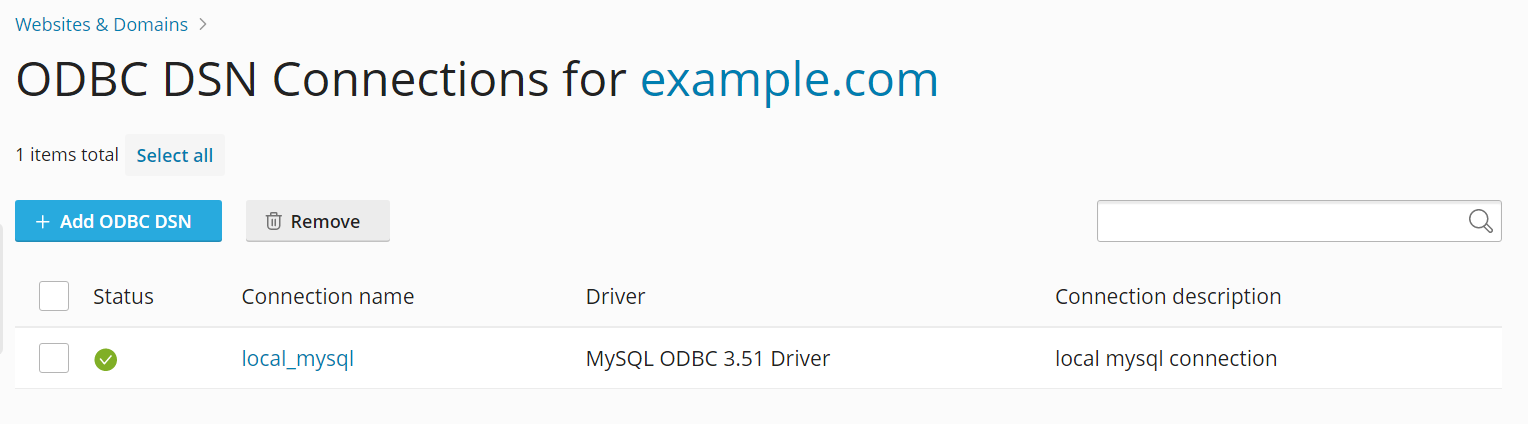
To change the settings of an existing server-level ODBC data source:
Go to Tools & Settings and click ODBC Data Sources.
Haga clic en el nombre de la conexión deseada en la lista.
Cambie las opciones como desee.
Click Test connection to check whether the connection will function properly with the new settings.
Click Save to save changes.
To remove a server-level ODBC data source:
Go to Tools & Settings and click ODBC Data Sources.
Seleccione la casilla que aparece al lado de la conexión que desea eliminar.
Haga clic en Eliminar y a continuación haga clic en Sí, eliminar.
Managing Domain-Level ODBC Data Sources
Domain-level ODBC data sources are available only to a specific domain.
To create a new domain-level ODBC data source:
Vaya a Sitios web y dominios y haga clic en Orígenes de datos ODBC.
Haga clic en Añadir DSN ODBC.
Indique el nombre y la descripción de la conexión ODBC en los campos pertinentes.
In the Platform field, select 32-bit or 64-bit depending on your application’s requirements.
Seleccione el controlador requerido en el campo Controlador.
Haga clic en Crear DSN ODBC.
Choose the appropriate options on the driver configuration screen. Typically, you have to specify the database path, user credentials, and other connection options depending on the selected driver.
Click Test connection to check whether the connection will function properly with the provided settings.
Click Save to complete the creation.
To change settings of an existing domain-level ODBC data source:
Vaya a Sitios web y dominios y haga clic en Orígenes de datos ODBC.
Haga clic en el nombre de la conexión deseada en la lista.
Cambie las opciones como desee.
Click Test connection to check whether the connection will function properly with the new settings.
Click Save to save changes.
To remove a domain-level ODBC data source:
Vaya a Sitios web y dominios y haga clic en Orígenes de datos ODBC.
Seleccione la casilla que aparece al lado de la conexión que desea eliminar.
Haga clic en Eliminar y a continuación haga clic en Sí, eliminar.