
Viewing Web Statistics for Websites
Содержание
Web statistics provide valuable information about the hosted websites (for example, the number of visits). Studying a website’s web statistics can help you understand its traffic, troubleshoot issues, and detect anomalies. It can also produce valuable insights into the website’s audience and its behavior.
In this topic, you will learn how to access web statistics in Plesk.
Общие сведения об обновлениях
Web statistics are collected by parsing the web server’s logs for information about the requests made to a specific website, and are then presented in the form of an easy-to-read web page. Out of the box, Plesk offers the following web statistics tools:
(Plesk for Linux) GoAccess, an open source, real-time web log analyzer and interactive viewer. Learn more about GoAccess.
Webalizer, a fast, free web server log file analysis program. Learn more about Webalizer.
Примечание
At the moment, Plesk also supports the web statistics tool AWStats. Because it has not been maintained by the developer, AWStats will be marked as «Outdated» in Plesk Obsidian 18.0.78, and will no longer be available for installation in Plesk Obsidian 18.0.79 and later.
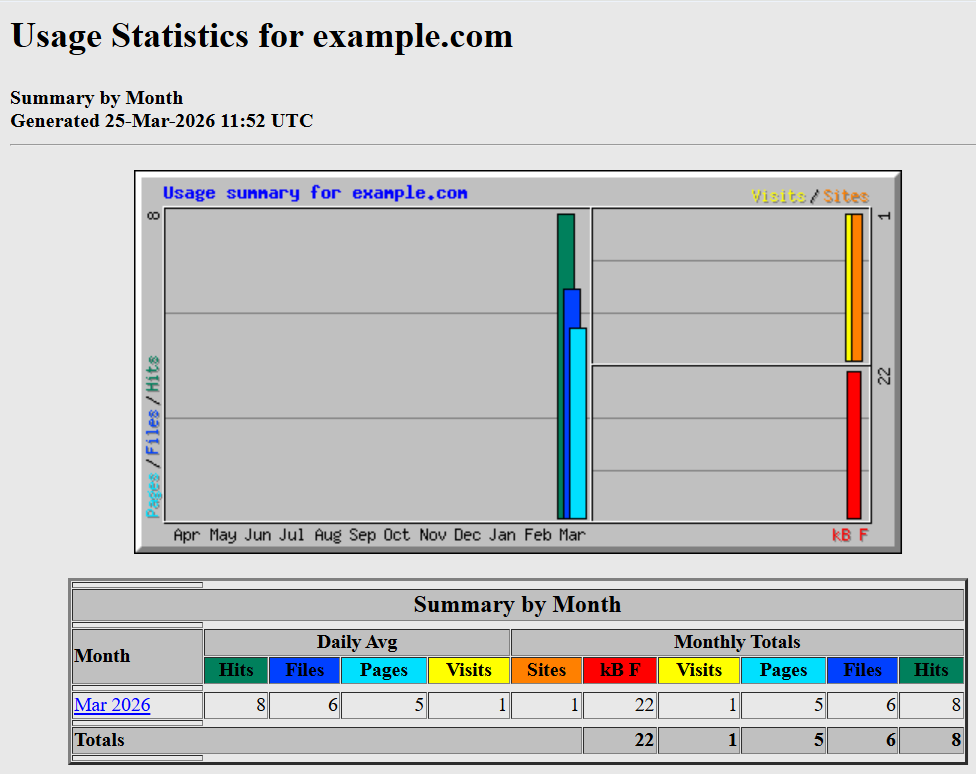
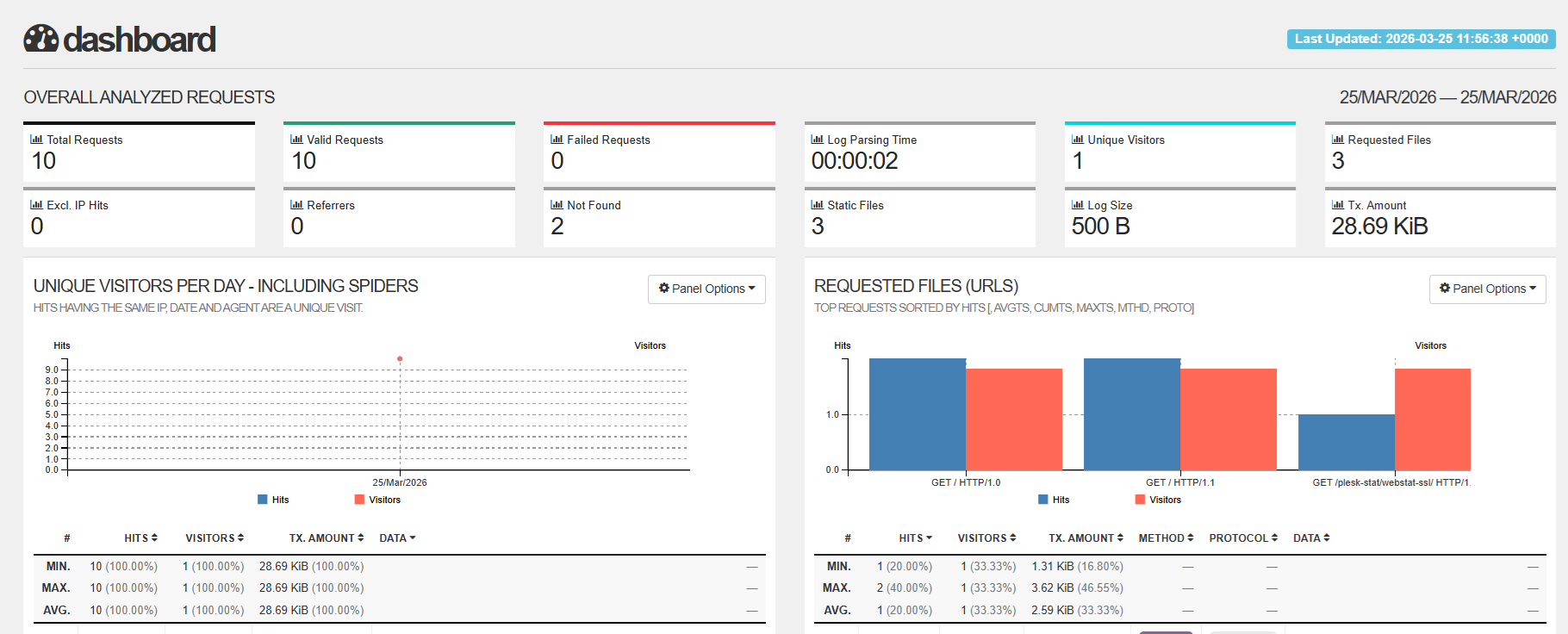
The specific data shown depends on the statistics tool being used:
-
Webalizer shows basic data, such as the number of visits to the website, the number of unique visitors, and the number of individual files that have been sent by the web server.

-
GoAccess shows much more data than Webalizer does. For example, the number of valid and failed requests, the specific files being requested, and visitors“ hostnames and IP addresses.
Viewing Web Statistics
A website’s web statistics are shown on a web page generated by the currently selected web statistics tool. You can access it from the Plesk interface, as well as via its permanent URL (https://<domain name>/plesk-stat/webstat-ssl/).
To view web statistics data for a website:
Войдите в Plesk.
In the navigation pane, click Websites & Domains, and then find the desired website.
-
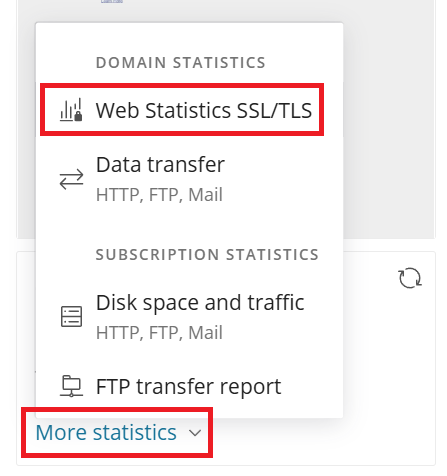
On the website’s card, click More statistics, and then click Web Statistics SSL/TLS.
If prompted, enter the website system user’s login and password.
The web statistics page will open in a new browser window.
Примечание
If you see the «This is the placeholder for Web statistics» page instead, this means that web statistics for the website have never been generated. Usually, this is because the website was created very recently. In this case, you can generate web statistics manually, as described in the next section.
Generating Web Statistics Data Manually
By default, web statistics data is generated automatically once every 24 hours. If you need up-to-date data for a specific website, or if the data has not yet been generated (in case of a newly created website), you can generate web statistics data manually.
To manually generate web statistics data for a website:
Войдите в Plesk.
In the navigation pane, click Websites & Domains, and then find the desired website.
-
On the website’s card, click the
icon next to «Statistics».
 icon next to «Statistics».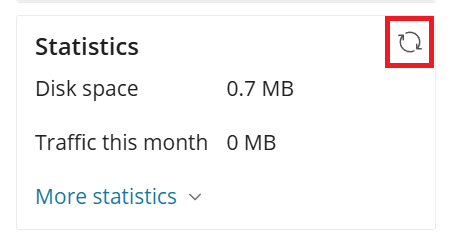
Web statistics data for the website will be recalculated, and the web statistics page will be updated accordingly. The recalculation may take some time, and you will need to refresh the web statistics page to see the up-to-date data.
(Plesk for Linux) Selecting the Web Statistics Tool for a Website
In Plesk for Linux, you can choose what web statistics tool to use on a per website basis.
To select the web statistics tool for a website:
Войдите в Plesk.
In the navigation pane, click Websites & Domains, and then find the desired website.
Go to the «Hosting & DNS» tab, and then click Hosting.
Under «Web statistics», select the desired tool, and then click Save.
Selecting a different web statistics tool removes the currently generated web statistics page. To see the web statistics page generated by the selected tool, generate web statistics data manually, as described earlier in this topic.
Примечание
For newly created websites, the web statistics tool is determined by the settings of the hosting plan the corresponding subscription is based on. You can change the web statistics tool for websites owned by subscriptions based on a specific hosting plan by selecting the desired tool on the «Hosting Parameters» tab in the hosting plan’s settings.
Removing Password Protection from the Web Statistics Page
As long as a hosted website has web statistics enabled and is accessible over the Internet, its web statistics page is accessible as well. To prevent unauthorized access to the web statistics data, the page is secured by default using the website’s system user login and password. If desired, this protection can be removed from the page.
To remove web statistics password protection for a website:
Войдите в Plesk.
In the navigation pane, click Websites & Domains, and then find the desired website.
Go to the «Hosting & DNS» tab, and then click Hosting.
Under «Web statistics», clear the «Protect access to your web statistics with your FTP username and password» checkbox, and then click Save.
The website’s web statistics page is no longer protected with a password, and can be visited by anyone. To restore password protection, select the «Protect access to your web statistics with your FTP username and password» checkbox again.