
添加与移除域名
If your hosting plan supports multiple domains, you can add new domains to the server easily. Before adding a domain like example.com, make sure it’s registered. If your hosting provider offers domain registration, you can do it from the Customer Panel. Otherwise, register the domain with an external registrar first.
In Plesk, you can configure two types of sites:
-
Second-level domain websites (like example.com), which can include:
Unique domain name and optional aliases.
Subdomains (for example, mail.example.com).
FTP accounts with directory-level access.
Content creation with Sitejet Builder.
Easy app deployment (CMS, blogs, shopping carts, and more).
SSL/TLS for secure data exchange.
Mail services and mailing lists.
Statistics on traffic.
-
Subdomains (third-level domains), which typically represent sections of an existing site. They support:
Separate document root.
FTP access.
Content creation with Sitejet Builder.
Easy app deployment.
SSL/TLS for secure data exchange.
Statistics on traffic.
添加更多域名
托管一个新的二级域名网站:
-
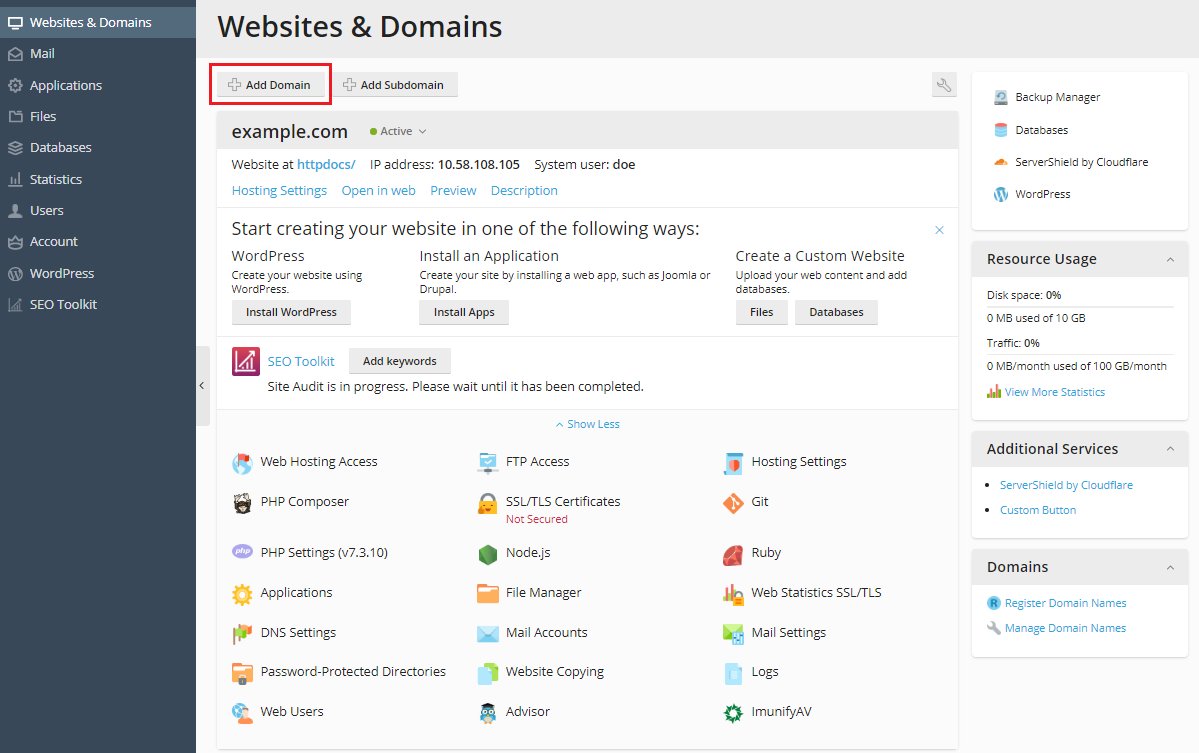
Go to Websites & Domains and click Add Domain

备注
The options available on the Add Domain screen may vary depending on your Plesk edition.
-
Choose one of the options for creating a website:
Blank website - Start with a simple placeholder page for your HTML or PHP site.
Upload files - Upload your own website files from your local computer.
Sitejet Builder - Create a website with our drag & drop website builder. Find out more at Sitejet Builder.
Deploy using Git - Pull your website files directly from a Git repository. Find out more at Git Support.
Wordpress - Set up a site running the latest WordPress version. Find out more at WP Toolkit.
Mail hosting - Create a new domain for mail hosting only.
-
Under the “Select your domain name” section, choose:
Registered domain name if you already have a domain. Enter the domain.
Temporary domain name if you do not have a registered domain name. Plesk generates a temporary domain name that you can use before you register and purchase a proper domain name.
-
Under the “Webspace settings” section, choose one of the following:
Create a new webspace and fill in the required details.
Select an existing webspace. In this case, choose the hosting type and its respective settings. Find out more at Hosting Types.
-
单击 “添加站点” 。
现在在屏幕底部显示新的域名。
如果您的帐号可更改主机设置,那么您可点击新网站的域名查看或更改主机设置,可参照小节 更改主机设置 。
Based on the option you selected for creating your site, you can now start building it (for example with Sitejet Builder or by uploading your web content to the subscription of the new website, as described in the section Website Content).
备注
If Plesk cannot resolve your domain when you create it, you will see a warning message in your domain’s **DNS Settings** interface (Websites & Domains > Hosting & DNS > DNS). Connect the DNS settings related and your domain name with the domain name at the registrar’s side. To achieve this, enter the Plesk name server IP address into the respective NS record of the registrar. The instruction on how to obtain the IP is as follows: go to Websites & Domains > domain name > Hosting & DNS > DNS, find the NS record, and then find the A record corresponding to the NS record value.
例如,如果 NS 记录是
example.com. NS ns.example.com*,找到带有
ns.example.com的 A 记录,如ns.example.com. A 192.0.2.12结果值,
192.0.2.12,就是您需要的 Plesk 域名服务器 IP。
选择一个域名视图模式
The “Websites & Domains” screen looks differently (the layout, visible controls, and the overall UX) depending on the domain view mode you choose.
To choose the view mode, go to Websites & Domains, click Set view, and then choose:
In an expanded row view is an expandable list best suited if you have several domains and you want to have access to all available controls.
On a separate page view is good if you have a large number of domains (more than 100). However, not all necessary controls will be visible.
Adding a Domain Favicon
A domain favicon is a small image Plesk shows next to a domain name. You can see favicons on the following screens:
(For Power User view) Websites & Domains
(For Service Provider view) Domains and Subscriptions
Once you create a domain, Plesk generates and shows a default favicon based on the first two characters of the domain name.
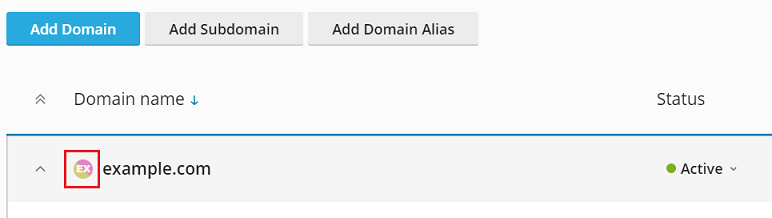
However, you can add your custom favicon, for example, the same one you use as your website favicon shown on the browser tab. Custom domain favicons help you to do the following:
Find the desired website more easily.
Tell one domain from another.
To add a Dynamic List domain favicon:
Choose a PNG, SVG, or ICO image you will use as the favicon.
-
Give the favicon image any of the following names:
favicon.svgfavicon-32x32.pngfavicon.pngfavicon-16x16.pngapple-touch-icon.pngfavicon.ico
-
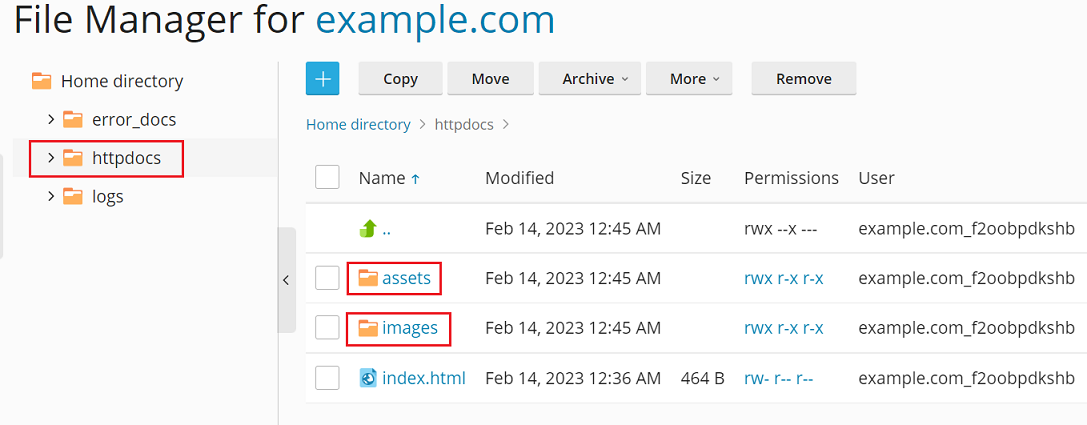
Using File Manager, upload the image to one of the following website directories:
The document root directory, which is, by default,
httpdocs(unless you set a custom document root)/imagesin the document root directory/assets/imagesin the document root directory
备注
It is essential that you upload a favicon to one of the directories mentioned above. To show a custom favicon, Plesk non-recursively searches for exact file name matches in the directories. If you upload the
favicon.svgfile to the/images/favicondirectory, Plesk will not find the image because/images/faviconis a subdirectory of the required directory.
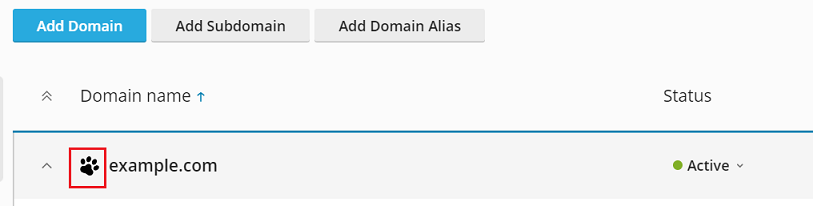
You have uploaded your custom favicon image. To have Plesk show your favicon, wait a while or refresh the Plesk page.
备注
If your website runs on WordPress, you can create both the website and domain favicon at the same time using the Favicon by RealFaviconGenerator plugin. Plesk detects a website favicon created by the plugin wizard and automatically sets the favicon for the domain in Dynamic List view.
For Plesk to find a favicon, you need to correctly name a favicon image and put it into the designated directories as described in the procedure above.
However, you can set custom location and custom name for a favicon using the panel.ini file.
To set a custom location for the Dynamic List domain favicon:
-
Open the “panel.ini” file for editing, which is located here:
(Plesk for Linux)
/usr/local/psa/admin/conf/panel.ini(Plesk for Windows)
%plesk_dir%admin\conf\panel.ini
您还可以使用`Panel.ini Editor <https://www.plesk.com/extensions/panel-ini-editor/>`__ 扩展在Plesk界面中编辑该文件。
-
Add lines of the following pattern and save the file:
[domainManagement]
favicons.customPaths[] = path/to/custom_favicon_name.ico
If you set a custom location for a favicon, favicons generated by the Favicon by RealFaviconGenerator plugin will stop working. To bring them back, you need to add the default custom path for Favicon by RealFaviconGenerator:
[domainManagement]
favicons.customPaths[] = path/to/custom_favicon_name.ico ; your custom path added earlier
favicons.customPaths[] = /wp-content/uploads/fbrfg/favicon.ico ; default custom path for Favicon by RealFaviconGenerator
If you do not want to see any domain favicons (neither custom not default ones) in Dynamic List view, you can disable favicons.
To disable Dynamic List domain favicons:
-
Open the “panel.ini” file for editing, which is located here:
(Plesk for Linux)
/usr/local/psa/admin/conf/panel.ini(Plesk for Windows)
%plesk_dir%admin\conf\panel.ini
您还可以使用`Panel.ini Editor <https://www.plesk.com/extensions/panel-ini-editor/>`__ 扩展在Plesk界面中编辑该文件。
-
Add the following lines and save the file:
[domainManagement]
favicons.enabled = false
移动域名
您可以移动以下项:
现有或新订阅的附加域名(订阅第一个域名后创建的域名)。移动到新订阅的附加域名将成为新订阅的主域名。
现有或新订阅的附加域名(订阅第一个域名后创建的域名)。移动到新订阅的附加域名将成为新订阅的主域名。
移动包括您的域名和订阅,以及那些属于您客户和代理商的域名和订阅。
将附加域名移动到现有订阅有助于执行以下操作:
在客户和代理商之间重新分配域名。
从 Plesk 早期版本和其它主机面板迁移后,正确地分配域名。
将过渡网站与生产网站分开然后将网站从开发状态移为生产状态。
将错误创建的域名移动到正确的订阅。
更有效的使用订阅的资源。
向新订阅移动附加域名可用于以下情况:
您要拆分一个带有多个域名的订阅以销售其中一个域名。
某个订阅接近于允许的资源限制。
您需要隔离安全受到威胁的域名。
通过将主域名移动到现有订阅,您可以将多个订阅合并为一个订阅,这有助于实现以下操作:
更有效地使用资源。
管理一个订阅而不是多个。
在迁移期间重新排列在订阅之间分散的域名。
A domain is moved to another subscription with its content, configuration files, log files, PHP settings, plus subdomains and domain aliases (if any).
备注
您想要将域名移动到的目标订阅必须有足够的资源(网站、子域名、域名别名或邮件名称)。
若要将域名移动到现有的或新的订阅,请如下操作:
-
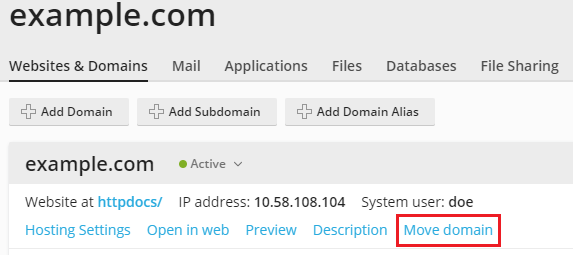
转到 网站与域名,找到您要移动的域名并点击 移动域名。
-
选择移动域名的位置:
To move it to an existing subscription, select an available subscription.
To move it to a new subscription, select Create a new subscription, specify the system username and the password (in the corresponding fields).
单击 保存 。
移动完成后,您的域名将被分配给选定的订阅。
已知问题和局限性
移动域名有许多问题和局限性。所有移动操作(附加域名和主域名)都可能有大部分的问题和局限性。而其它一些局限性会在仅移动附加域名或仅移动主域名时产生。
所有的移动操作
无法将域名移动到没有主机的订阅。
-
只有下列用户才能将附加域名移动到新订阅,将主域名移动到现有订阅:
Plesk 管理员。
具有“在服务器管理面板中创建订阅以及在客户面板中创建域名”权限的代理商。
如果目标订阅存在有相同文档根目录的域名,则无法移动域名。若要移动该域名,请更改其 “文档根目录” 值(在主机设置中)。
无法将有邮件服务的域名移动到没有邮件服务的订阅。
如果具有自定义的其它 Apache 或 nginx 指令的域名被移动到了另一个订阅,则这些指令会被保留,您可能需要对其进行检查。
-
如果您移动有以下两项的域名:
已安装的 web 应用程序(WordPress、Joomla! 或其它)
和设为应用程序管理员的 Plesk 其他的用户,
其他的用户将失去对应用程序的访问权限。应用程序管理员的登录名和密码将被更改(您可以在应用程序设置中查看)。
如果您将带有邮件用户的域名移动到属于其它所有者的订阅,电子邮件地址将会与该邮件用户分离。
如果您将域名移动到有不同 PHP 设置的订阅,将会锁定目标订阅。
移动附加域名
-
以下项不可移动:
没有父级域名的子域名。
没有父级域名的域名别名。
移动安装有 web 应用程序(WordPress、Joomla! 或其它)的域名不会自动移动应用程序的数据库。这不会影响网站,但是您可能想要手动将数据库移动到现在分配了域名的订阅。
移动主域名
-
以下项不可移动:
其订阅有附加域名的主域名(创建订阅时创建的域名)。
有 web 用户的主域名。
移动安装了 Web 应用程序(WordPress、Joomla! 等)的主域名会自动移动应用程序的数据库和数据库用户。
移动启用计划备份任务的主域名将关闭备份任务。
移动主域名将关闭为域名设置的匿名 FTP 访问。
移动有其他用户的主域名会将用户从源订阅中分离出来,并将其移动到目标订阅。
移动有计划任务的主域名会将任务移动到目标订阅。
移动一个有其他 FTP 用户的主域名会将用户移动到目标订阅,并保留他们的主路径。
删除站点
当您从 Plesk 中删除域名时,所有与相应网站相关的数据都会从服务器中删除。
备注
您的订阅的主域名 - 就是为您帐户创建的第一个域名(默认域名),无法被删除;但是可被重命名。
要删除域名,请执行下列步骤:
请转到 网站与域名 ,并找到所要删除的域名或子域名。
单击 删除网站 或 删除子域名 。
请确认删除并单击 是的,移除 。
备注
从客户面板中移除域名不会取消这些域名的注册。如果您已经注册了这些域名,以后仍可把这些域名用于您的网站。