
从 Mozilla Thunderbird 访问
概要: 如何在 Mozilla Thunderbird 中添加 Plesk 电子邮件账户。
本章内容适用于 Mozilla Thunderbird 31.4.0。可能不适用于 Mozilla Thunderbird 更早或更新的版本。
要设置 Mozilla Thunderbird,请执行下列步骤:
-
打开 Mozilla Thunderbird。
-
点击 邮件 (在 创建新的帐户 下)。
-
点击 跳过此步骤并使用我现有的邮件 按钮。
-
指定下列内容:
-
输入您想在所发送的任何邮件中显示的姓名。
-
您的电子邮件地址和密码。

-
-
单击 继续 。
-
如果 Thunderbird 未自动找到设置,请点击 手动配置 并指定以下项:
-
帐户类型。若希望在服务器上保留邮件,选择 IMAP 选项。若不希望在服务器上保留邮件,选择 POP3 选项。若服务器上启用 SpamAssassin,选择 IMAP 即可培训垃圾邮件过滤器检查收件。
-
-
点击 完成 。
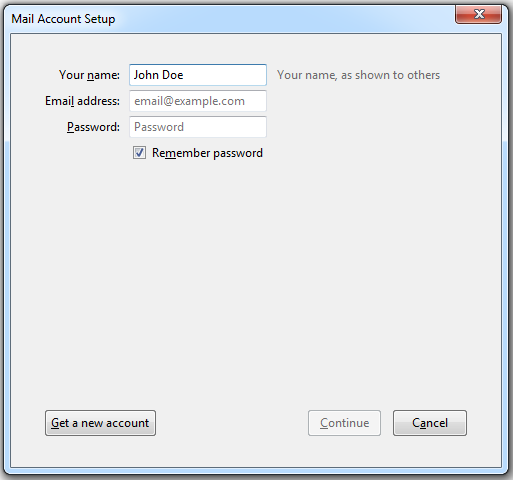
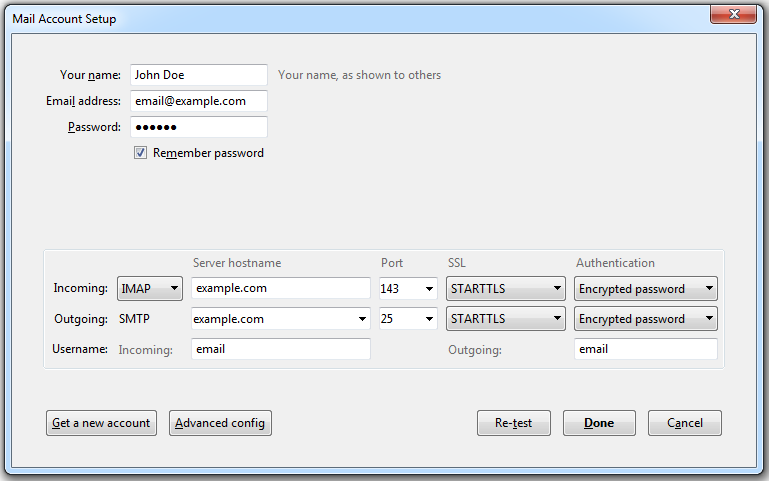
如果您想要手动设置邮件账户,可使用以下典型的连接安全和验证方式设置组合。如果这些设置不适用于您,可以向您的主机提供商咨询正确的设置组合。
在 Linux、SMTP、IMAP、POP3 上:
- SSL/TLS :STARTTLS
- 验证 :加密密码
在 Windows 上,IMAP:
- SSL/TLS :none
- 验证 :加密密码
在 Windows 上、SMTP、POP3 上:
- SSL/TLS :none
- 验证 :正常密码
在手动配置帐户时您可能需要的其它参数:
- POP3 端口:110
- IMAP 端口:143
- SMTP 端口:25
- 用户名 。完整的电子邮件地址。例如: johndoe@example.com.
- 接收服务器地址 (POP3/IMAP)。指定网站 Internet 地址。例如: example.com
- 发送服务器地址 。指定网站 Internet 地址。例如: example.com