上传内容
Plesk 提供两种便捷方式为您的域名上传内容:
使用 FTP 上传内容。通过一个 FTP 客户端的程序您可以连接服务器并上传您的内容。
使用文件管理器上传内容。通过 Plesk 您可以使用一个 web 界面上传并编辑内容。
使用 FTP 上传内容
若要使用 FTP 连接服务器,您需要以下信息:
FTP 服务器地址 FTP 地址是您的域名,也就是您网站的互联网地址。
FTP username. It is identical to your system user name. To find what your system user name is, go to Websites & Domains > Hosting & DNS > Hosting. You will find it under Username. You can change your system user name if you want.
FTP password. It is identical to your system user password. If you do not know what your system user password is, go to Websites & Domains > Hosting & DNS > Hosting. You can reset the password under Password.
您还需要一个 FTP 客户端程序。在互联网上有很多免费的 FTP 客户端,例如 FileZilla 或 FireFTP。在您的电脑上下载和安装客户端并连接到 FTP 服务器。请参阅 FTP 客户端说明了解如何安装和配置它。
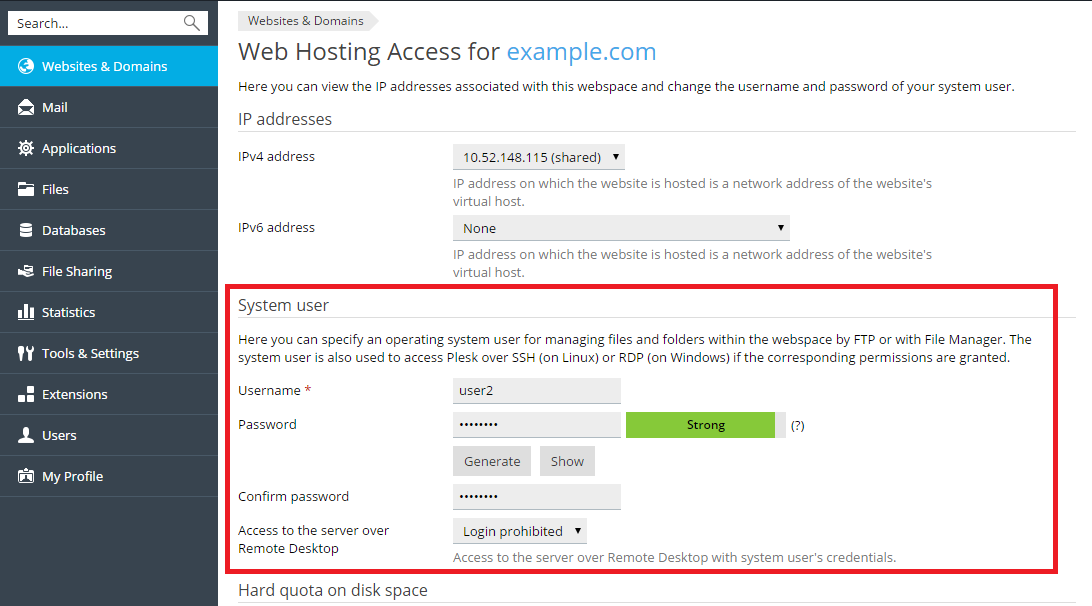
To change the FTP account username or password, go to Websites & Domains > Hosting & DNS > Hosting.
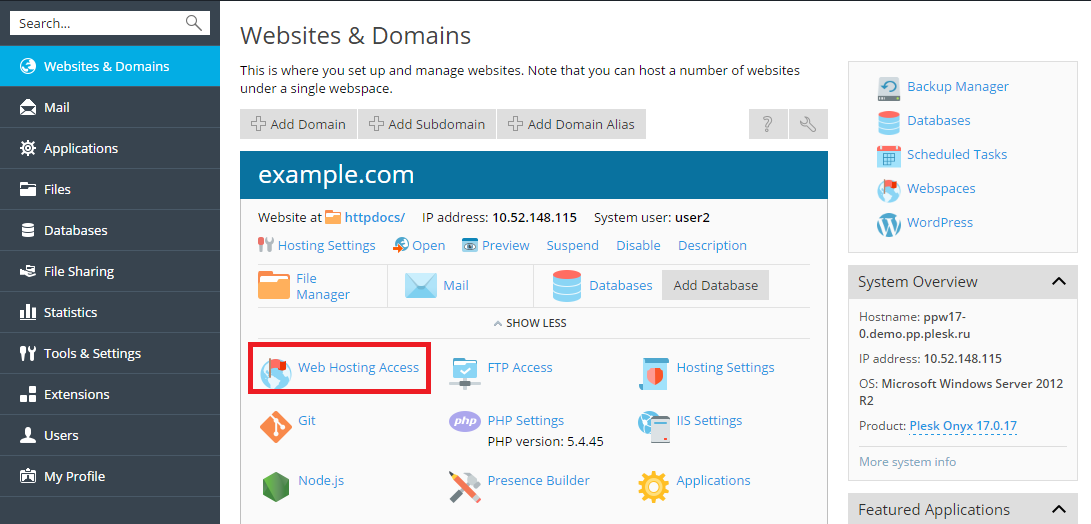
然后为 系统用户 指定新的用户名和密码。
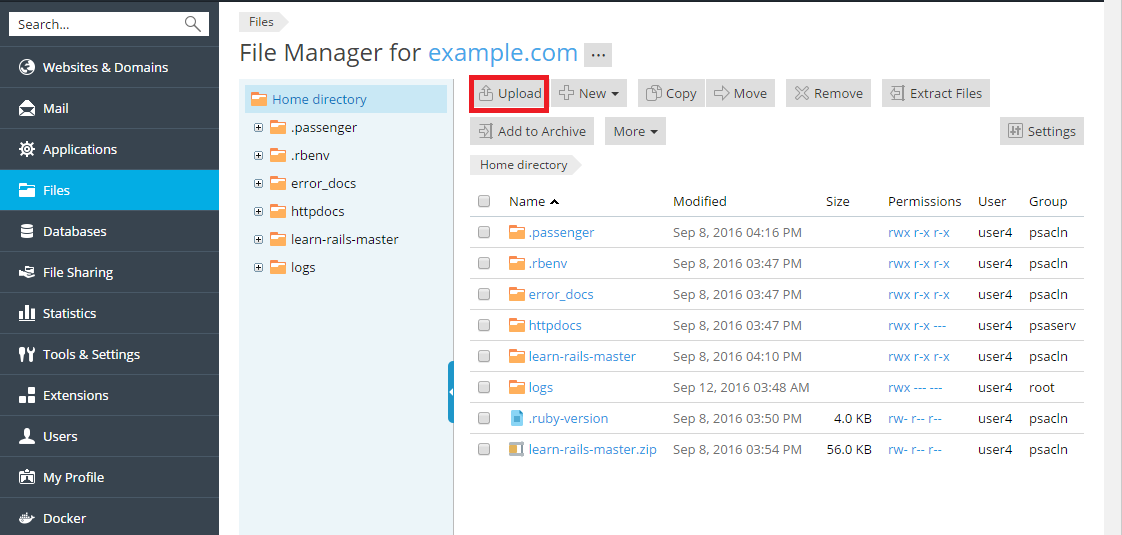
Adding and Managing Content Using the File Manager
To add content, go to Files, navigate to the folder to which you
want to add content, click the  icon and choose between:
Upload File - Select the file to be uploaded, and click Open.
Upload Directory - Drag and drop files or folders to be uploaded.
Import file via URL - Specify the source URL for the file to be uploaded.
Create File - Create a new blank file.
Create Directory - Create a new empty folder.
Note that when uploading multiple files it is recommended to add them to an archive, upload the archive, and extract the files to save time.
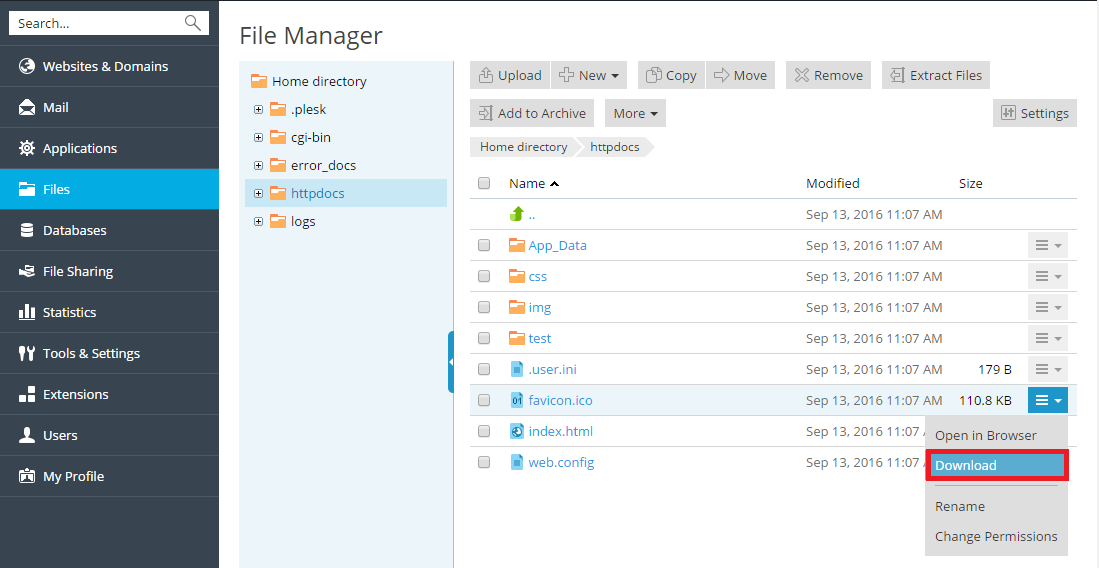
若要下载文件,请转入 文件 标签,导航到您想要上传的文件的地址,点击您要下载的文件旁边的  图标,然后从菜单选择 下载 。
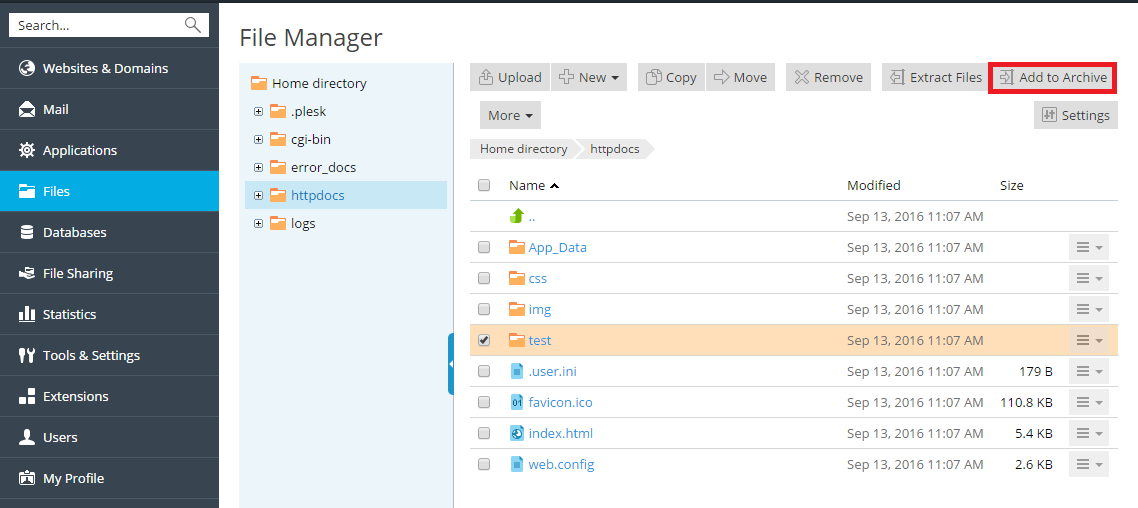
若要压缩文件,请转入 文件 标签,导航至您要压缩的文件或文件夹的地址,选择靠近的复选框,然后点击 添加到存档 。
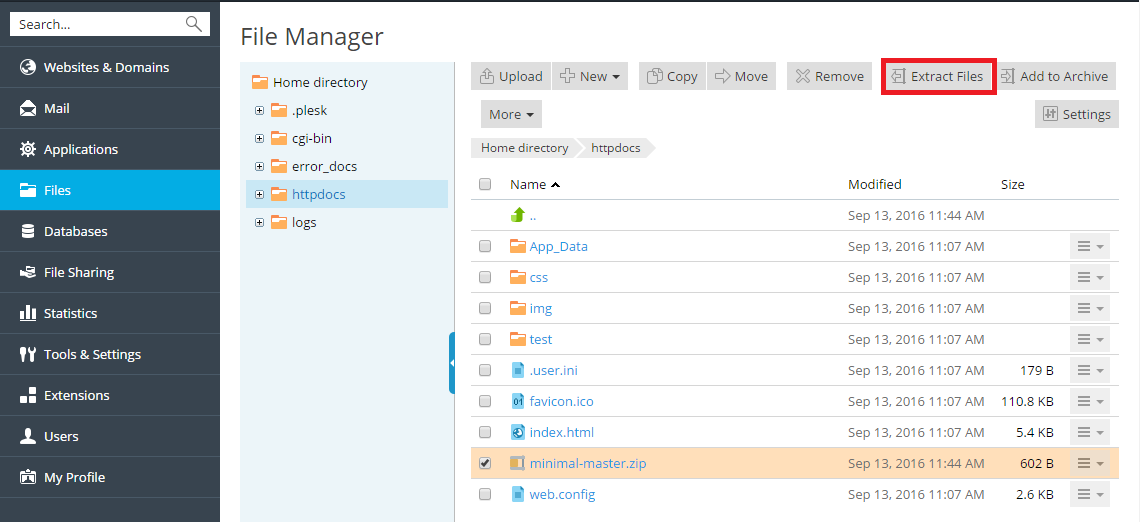
若要从存档提取文件,请转入 文件 标签,选择靠近您要提取的文件的复选框,然后点击 提取文件 。
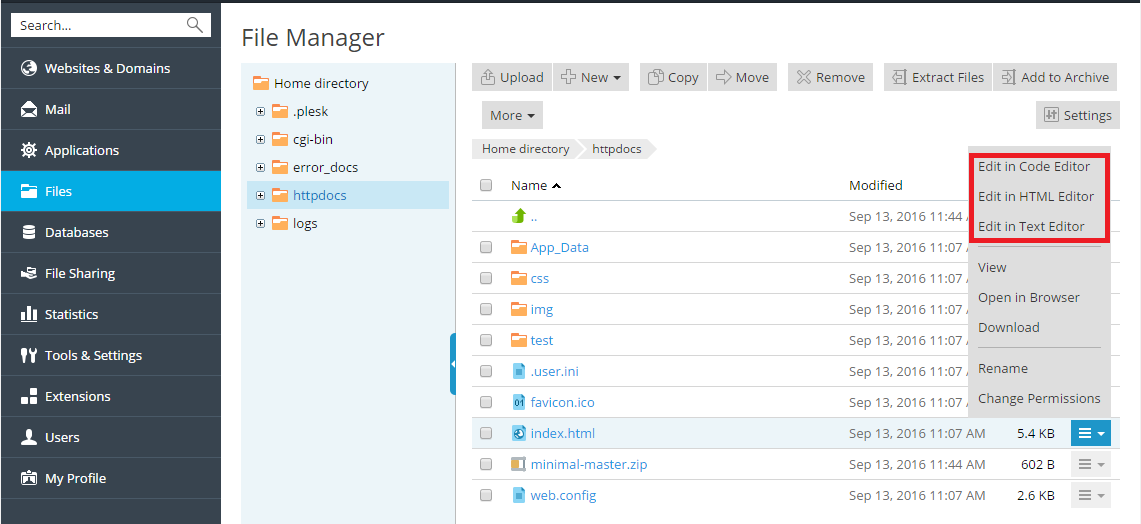
若要编辑文件,转入 文件 标签,导航至您要编辑的文件的地址,并进行以下步骤:
若要在代码编辑器中编辑文件,点击您要编辑的文件旁边的
 图标,选择 在代码编辑器中编辑 。
若要在 HTML 编辑器中编辑文件,点击您要编辑的文件旁边的
图标,选择 在 HTML 编辑器中编辑 。-
若要在文本编辑器中编辑文件,点击您要编辑的文件旁边的
图标,选择 在文本编辑器中编辑 。
 图标,选择 在代码编辑器中编辑 。
 图标,选择 在文本编辑器中编辑 。