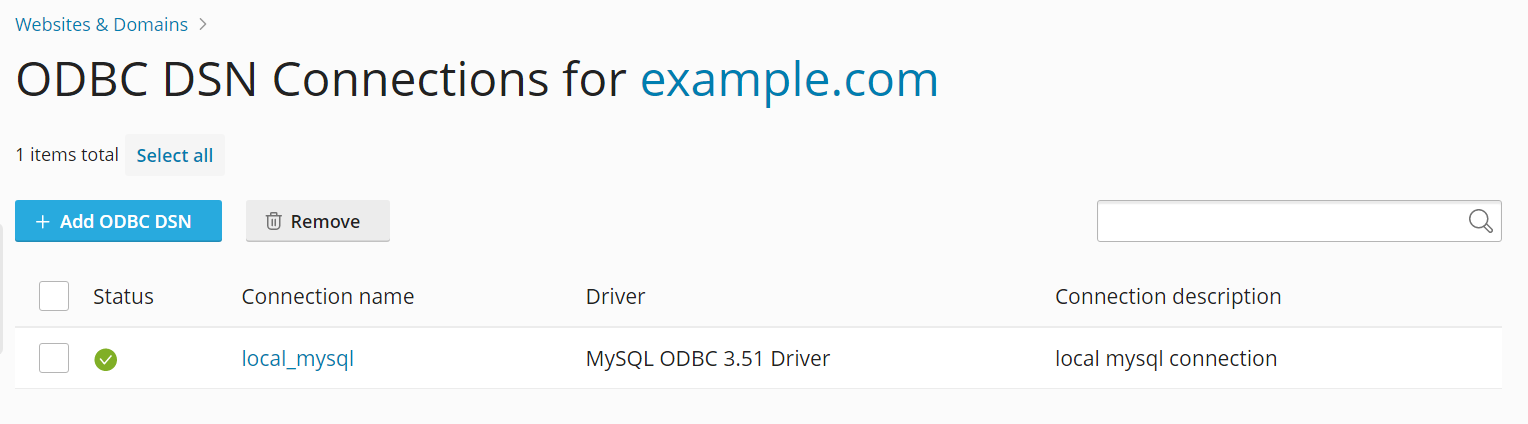
如果您的應用程式需要通過 ODBC 存取外部資料庫,可在 Plesk 中創建所需的 ODBC 連接。您在創建 ODBC 連接後,可自訂該應用程式使用該 ODBC 連接,以存取資料庫中的資訊。

注意,該資料庫不一定是外部資料庫,ODBC 也可用於存取本地資料庫。

ODBC data sources can be managed at two levels:

  • Server level — data sources available to all domains on the server. Managed in Tools & Settings > ODBC Data Sources.

  • Domain level — data sources available to a specific domain only. Managed in Websites & Domains > ODBC Data Sources.

Plesk supports both 32-bit and 64-bit data sources. When creating a data source, you can select the platform (32-bit or 64-bit) based on your application’s requirements. The default is 64-bit.

備註

If you are upgrading from an earlier version of Plesk, the plesk bin dsn CLI command now defaults to managing 64-bit data sources. If you need to manage 32-bit data sources via CLI, use the -bit 32 option explicitly.

ODBC Drivers

Plesk for Windows includes built-in support for the following 64-bit ODBC drivers:

  • SQL 伺服器

  • ODBC Driver 17 for SQL Server

  • MySQL ODBC 9.7

To use additional ODBC drivers, install them manually on the server. After installation, go to Tools & Settings > Server Components and click Refresh so that Plesk recognizes the newly installed drivers.

Managing Server-Level ODBC Data Sources

Server-level ODBC data sources are available to all domains on the server.

To create a new server-level ODBC data source:

  1. Go to Tools & Settings and click ODBC Data Sources.

  2. 點按 添加 ODBC DSN.

  3. 在相應欄位指定 ODBC 連接名稱和描述。

  4. In the Platform field, select 32-bit or 64-bit depending on your application’s requirements.

  5. 驅動程式 欄位選擇所需驅動程式。

  6. 點按 建立 ODBC DSN.

  7. Choose the appropriate options on the driver configuration screen. Typically, you have to specify the database path, user credentials, and other connection options depending on the selected driver.

  8. Click Test connection to check whether the connection will function properly with the provided settings.

  9. Click Save to complete the creation.

    odbc connection

To change the settings of an existing server-level ODBC data source:

  1. Go to Tools & Settings and click ODBC Data Sources.

  2. 按一下列表中的所需連接名稱。

  3. 更改所需設定。

  4. Click Test connection to check whether the connection will function properly with the new settings.

  5. Click Save to save changes.

To remove a server-level ODBC data source:

  1. Go to Tools & Settings and click ODBC Data Sources.

  2. 選擇您需要移除的連接相對應的核取方塊。

  3. Click Remove, and then click Yes, remove.

Managing Domain-Level ODBC Data Sources

Domain-level ODBC data sources are available only to a specific domain.

To create a new domain-level ODBC data source:

  1. 轉到 網站與域名 並按一下 ODBC 資料來源

  2. 點按 添加 ODBC DSN.

  3. 在相應欄位指定 ODBC 連接名稱和描述。

  4. In the Platform field, select 32-bit or 64-bit depending on your application’s requirements.

  5. 驅動程式 欄位選擇所需驅動程式。

  6. 點按 建立 ODBC DSN.

  7. Choose the appropriate options on the driver configuration screen. Typically, you have to specify the database path, user credentials, and other connection options depending on the selected driver.

  8. Click Test connection to check whether the connection will function properly with the provided settings.

  9. Click Save to complete the creation.

To change settings of an existing domain-level ODBC data source:

  1. 轉到 網站與域名 並按一下 ODBC 資料來源

  2. 按一下列表中的所需連接名稱。

  3. 更改所需設定。

  4. Click Test connection to check whether the connection will function properly with the new settings.

  5. Click Save to save changes.

To remove a domain-level ODBC data source:

  1. 轉到 網站與域名 並按一下 ODBC 資料來源

  2. 選擇您需要移除的連接相對應的核取方塊。

  3. Click Remove, and then click Yes, remove.