
Add Small Buttons
Small buttons look exactly the same as the tools of the list. So, if we want to add a toolbar above a table, we need to use setTools. But sometimes you may need to add a toolbar without the table itself when implementing your extension’s UI. The overview page of an object featuring a toolbar with an Edit button is an example of such a scenario.
To add small buttons to a page, you need to define them in the controller:
public function smallButtonsAction()
{
    $this->view->smallTools = [
        [
            'title' => 'Example',
            'description' => 'Example module with UI samples',
            'class' => 'sb-button1',
            'controller' => 'custom',
            'action' => 'form',
        ],
        [
            'title' => 'Suspend',
            'description' => 'Link to extension entry point',
            'class' => 'sb-suspend',
            'link' => pm_Context::getBaseUrl(),
        ],
    ];
}
Then render it in view (small-buttons.phtml) using the
pm_View_Helper_RenderSmallTools
helper:
<?php echo $this->renderSmallTools($this->smallTools); ?>
Now you can visit the small buttons action of your extension and check the result:
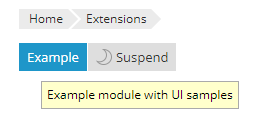
Moreover, you can see what the button would look like on a Plesk server using a different color scheme or branding (for example, when the Skins and Color Schemes extension is installed), or what the button would look like in adaptive design on a mobile device.