上傳內容
Plesk 提供兩種便捷方式為您的域名上傳內容:
使用 FTP 上傳內容。通過一個 FTP 用戶端的程式您可以連接伺服器並上傳您的內容。
使用內容管理器上傳內容通過 Plesk 您可以使用一個 web 介面上傳並編輯內容。
使用 FTP 上傳內容
若要使用 FTP 連接伺服器,您需要以下資訊:
FTP 伺服器地址 FTP 地址是您的域名,也就是您網站的互聯網地址。
FTP username. It is identical to your system user name. To find what your system user name is, go to Websites & Domains > Hosting & DNS > Hosting. You will find it under Username. You can change your system user name if you want.
FTP password. It is identical to your system user password. If you do not know what your system user password is, go to Websites & Domains > Hosting & DNS > Hosting. You can reset the password under Password.
您還需要一個 FTP 用戶端程式。在互聯網上有很多免費的 FTP 用戶端,例如 FileZilla 或 FireFTP。在您的電腦上下載和安裝用戶端並連接到 FTP 伺服器。請參閱 FTP 用戶端說明瞭解如何安裝和配置它。
To change the FTP account username or password, go to Websites & Domains > Hosting & DNS > Hosting.
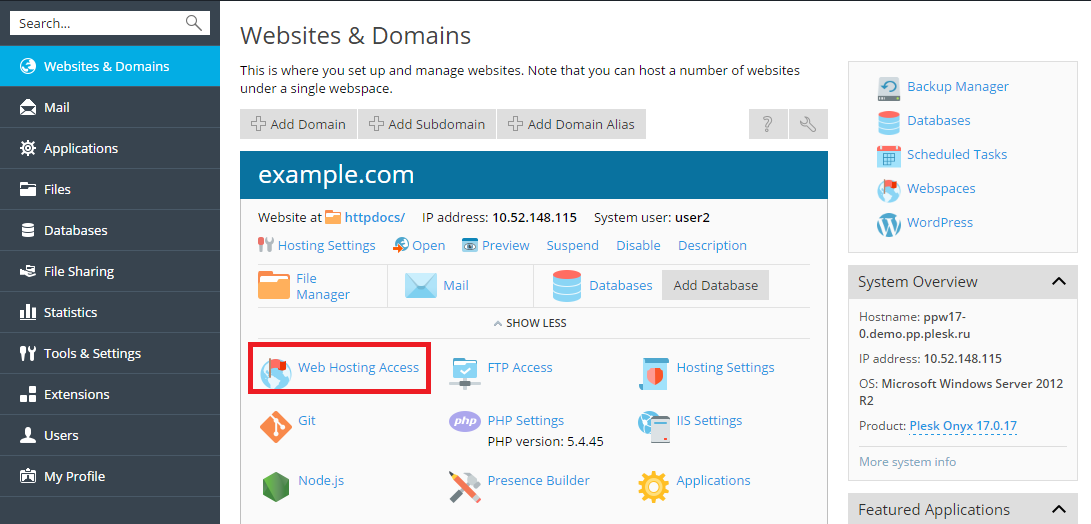
然後為 系統使用者 指定新的用戶名和密碼。
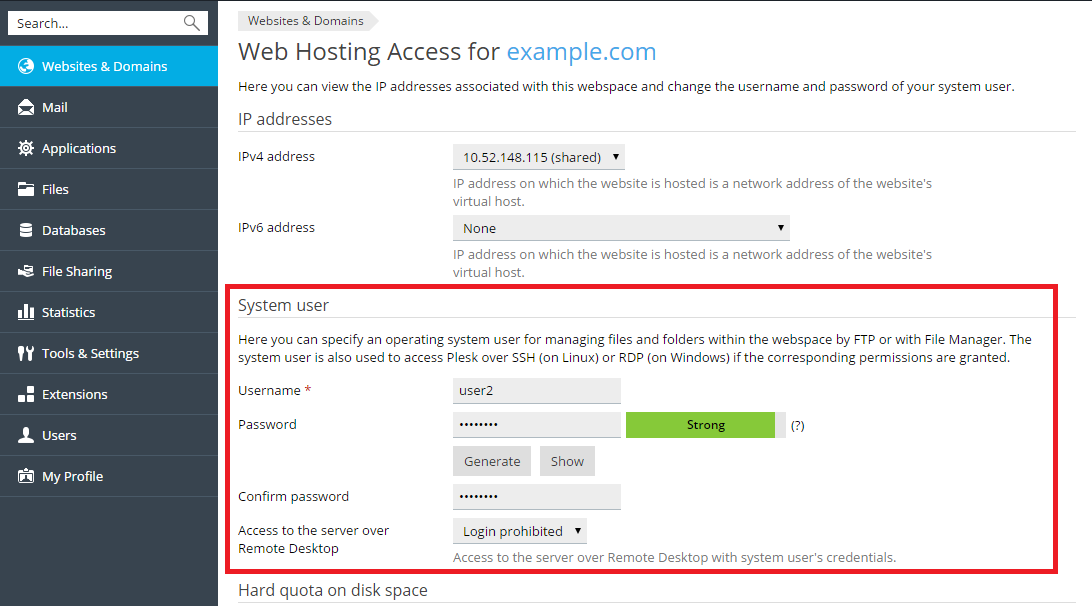
Adding and Managing Content Using the File Manager
To add content, go to Files, navigate to the folder to which you
want to add content, click the  icon and choose between:
Upload File - Select the file to be uploaded, and click Open.
Upload Directory - Drag and drop files or folders to be uploaded.
Import file via URL - Specify the source URL for the file to be uploaded.
Create File - Create a new blank file.
Create Directory - Create a new empty folder.
Note that when uploading multiple files it is recommended to add them to an archive, upload the archive, and extract the files to save time.
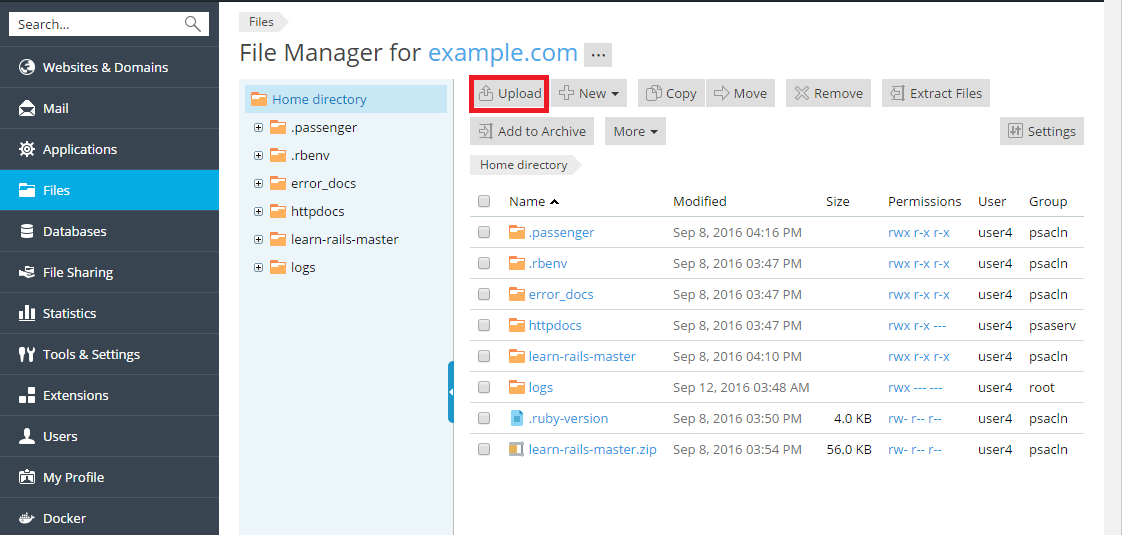
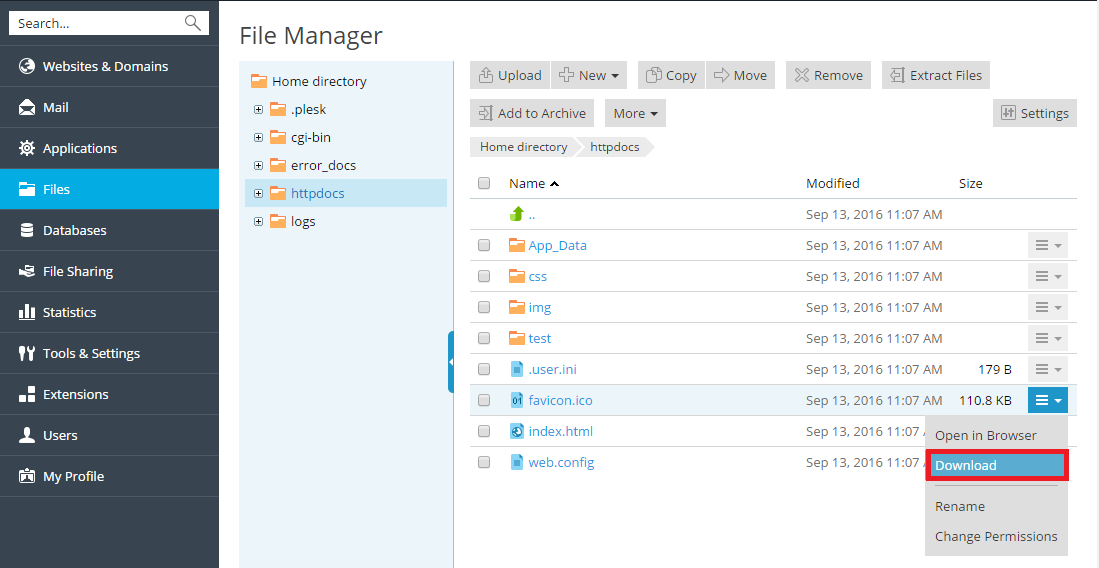
若要下載檔案,請轉入 文件 標籤,導航到您想要上傳的文件的地址,點按您要下載的文件旁邊的  圖示,然後從功能表選擇 下載 。
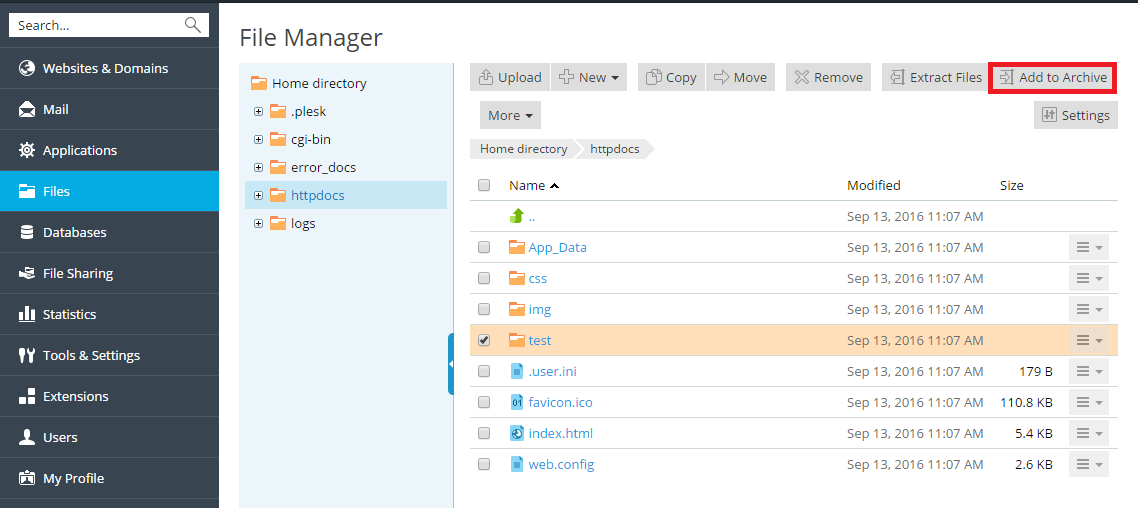
若要壓縮檔,請轉入 檔 標籤,導航至您要壓縮的檔或資料夾的位址,選擇靠近的核取方塊,然後點按 添加到存檔 。
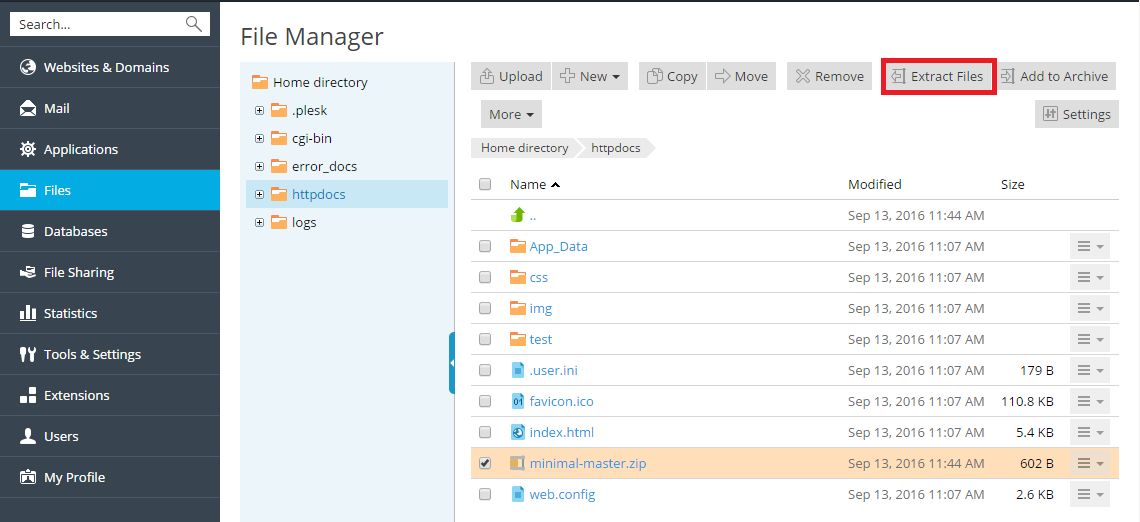
若要從存檔提取文件,請轉入 檔 標籤,選擇靠近您要提取的文件的核取方塊,然後點按 提取文件 。
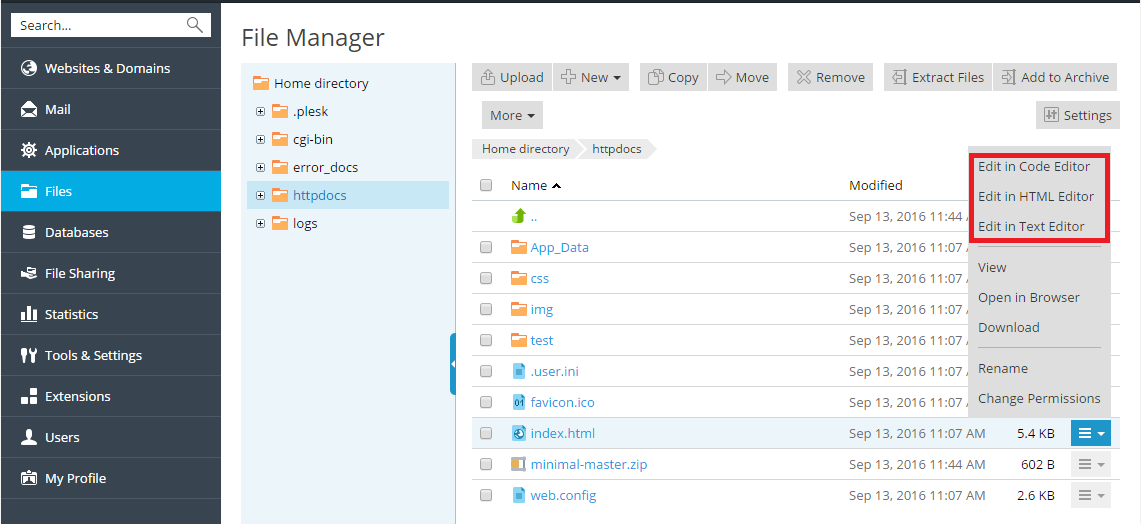
若要編輯檔,轉入 檔 標籤,導航至您要編輯的檔的位址,並進行以下步驟:
若要在代碼編輯器中編輯檔,點按您要編輯的檔旁邊的
 圖示,選擇 在代碼編輯器中編輯 。
若要在 HTML 編輯器中編輯檔,點按您要編輯的檔旁邊的
圖示,選擇 在 HTML 編輯器中編輯 。-
若要在文字編輯器中編輯檔,點按您要編輯的檔旁邊的
圖示,選擇 在文字編輯器中編輯 。
 圖示,選擇 在代碼編輯器中編輯 。
 圖示,選擇 在文字編輯器中編輯 。